
Analysis hub
Find the time. Corner by corner.
The Hub reads the telemetry files iRacing records (.ibt) and turns them into answers: how much time you can find, where it is, and what to change – driving, car or setup.
Home
After every session and every race.
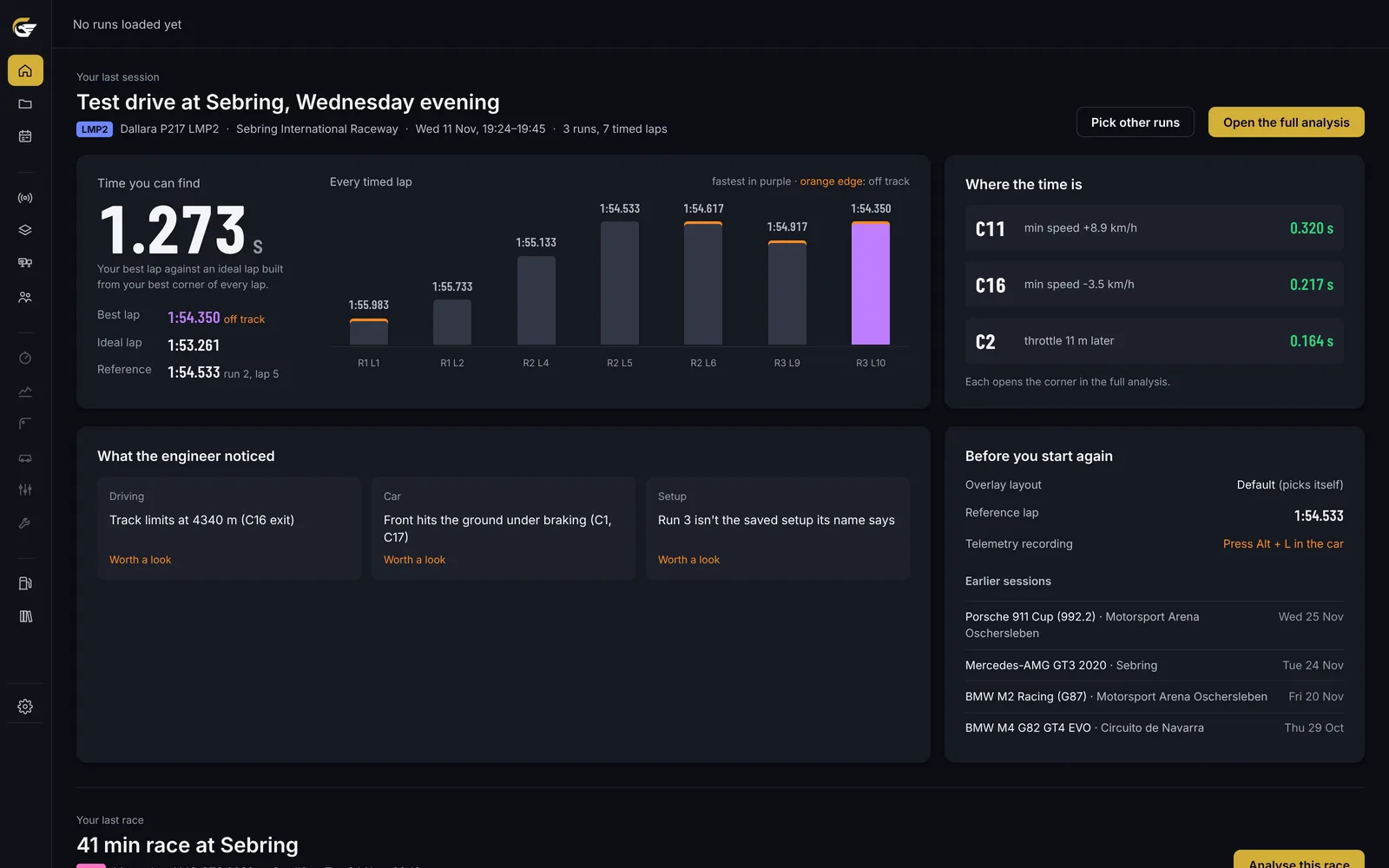
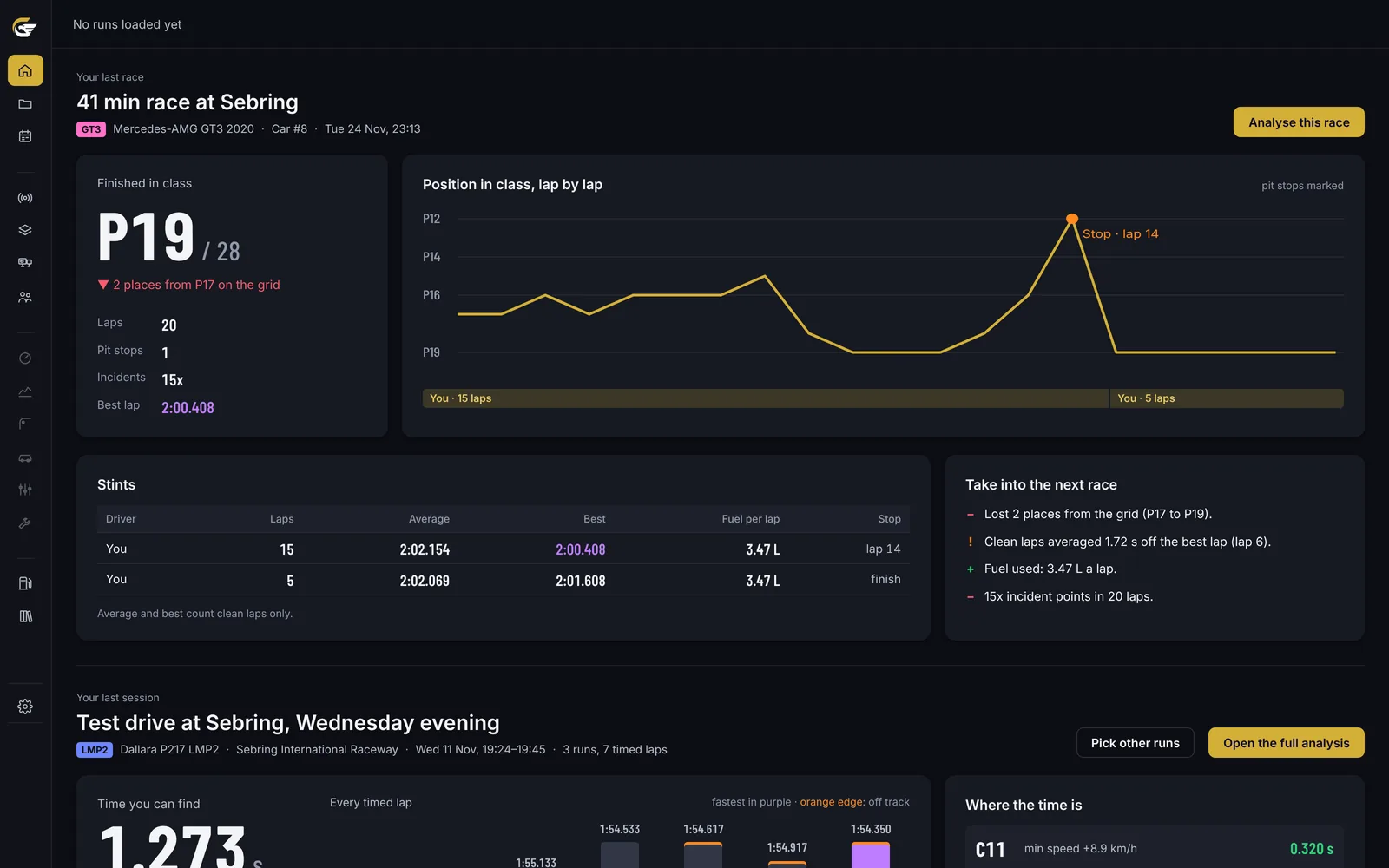
Open Grideagle and the Hub's start page already has the debrief of your last session – and, after a race, the report of how it went. Race results are recorded on your PC while you race.
- 01
Record
Drive with telemetry recording on – in iRacing that's Alt+L. Grideagle picks up the .ibt files.
- 02
Compare
Laps against a reference: your best, or a Garage61 lap – yours or a teammate's.
- 03
Find the corner
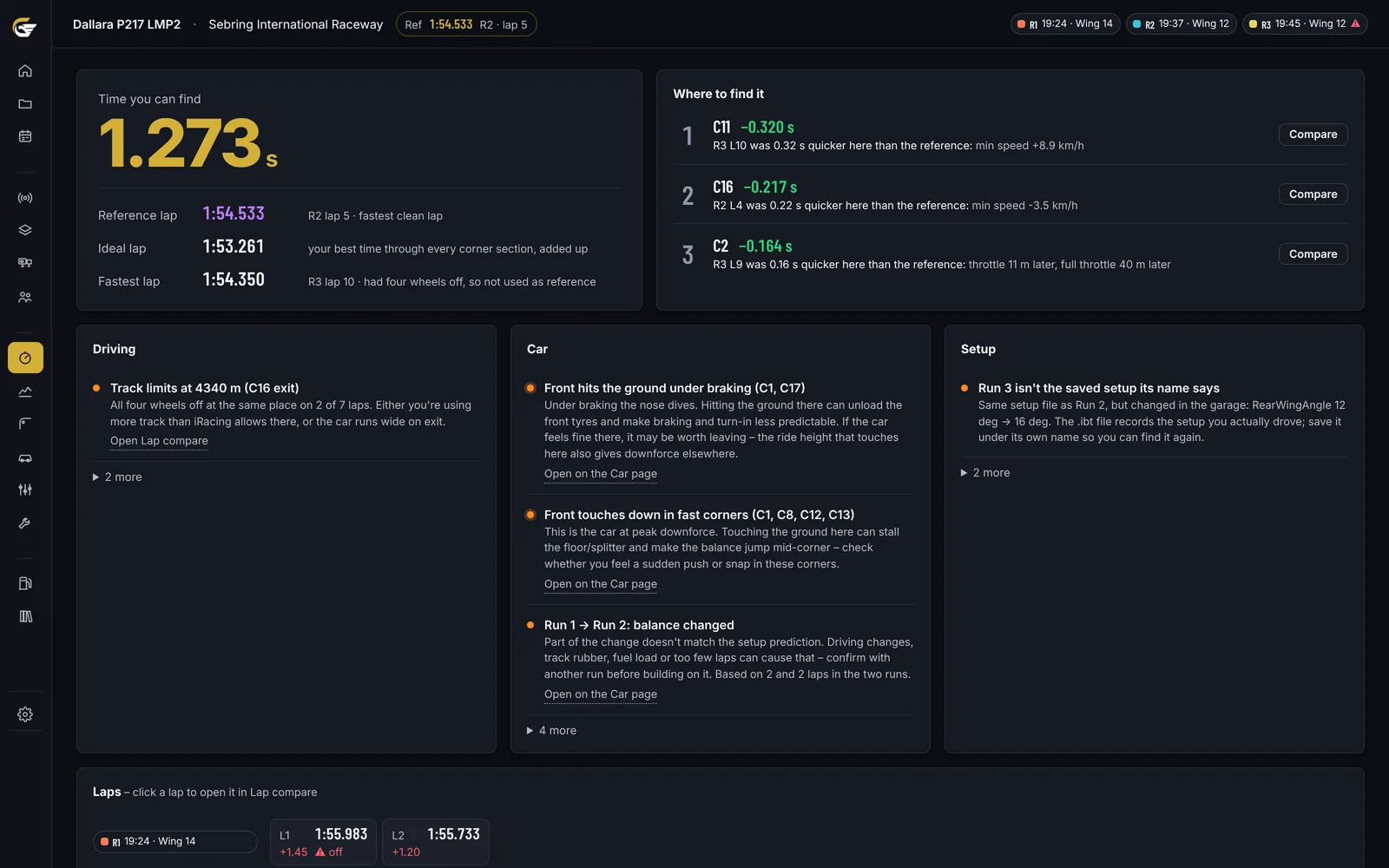
See per corner where the time goes – braking, minimum speed, throttle, balance.
- 04
Fix it
Driving or setup? The car pages, the engineer and the library help you decide what to change.
Sessions
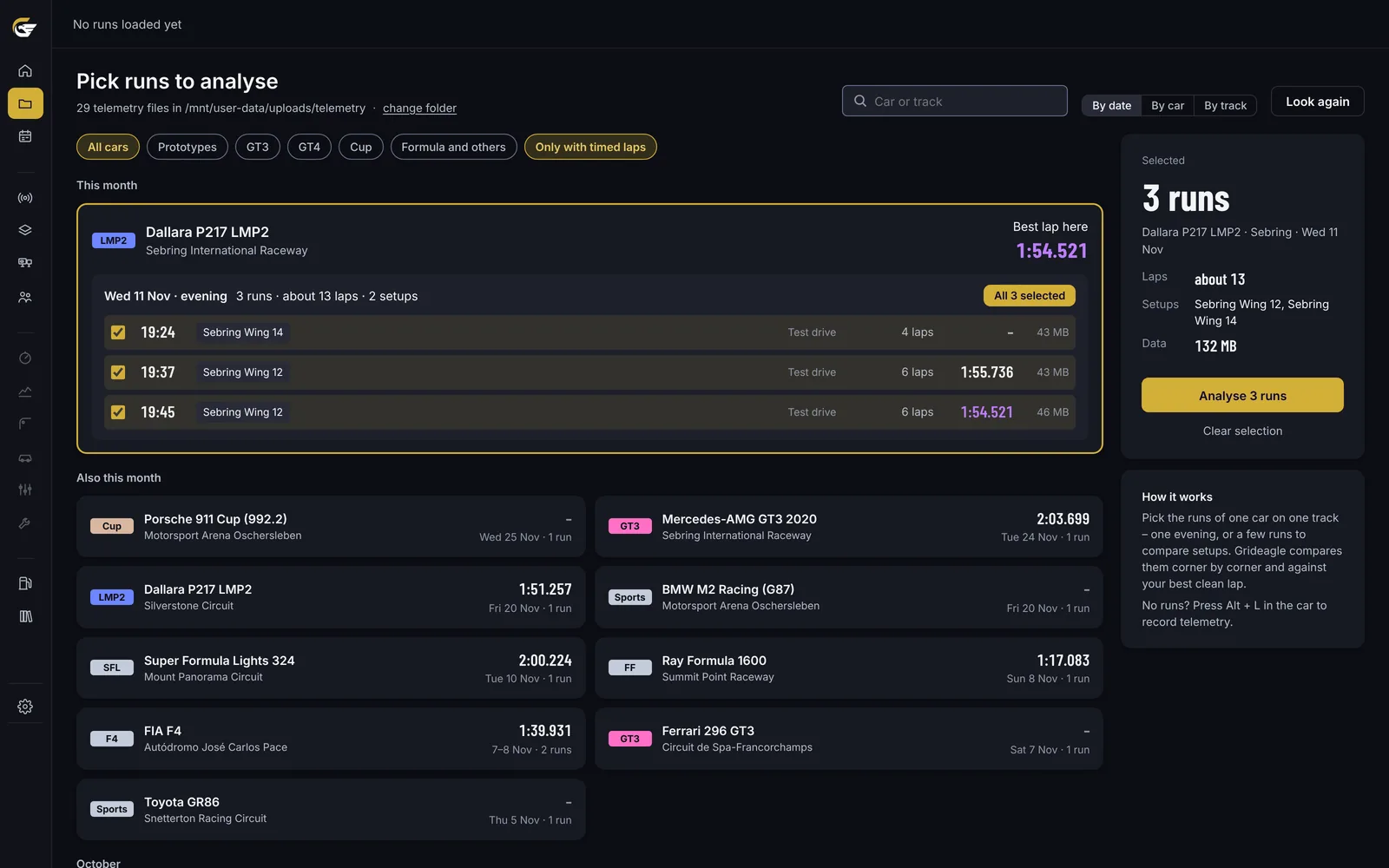
Start with your runs.
- One card per car and track, filtered by class
- Every evening with its runs, setup names and best laps
- Pick several runs and analyse them together
Logbook
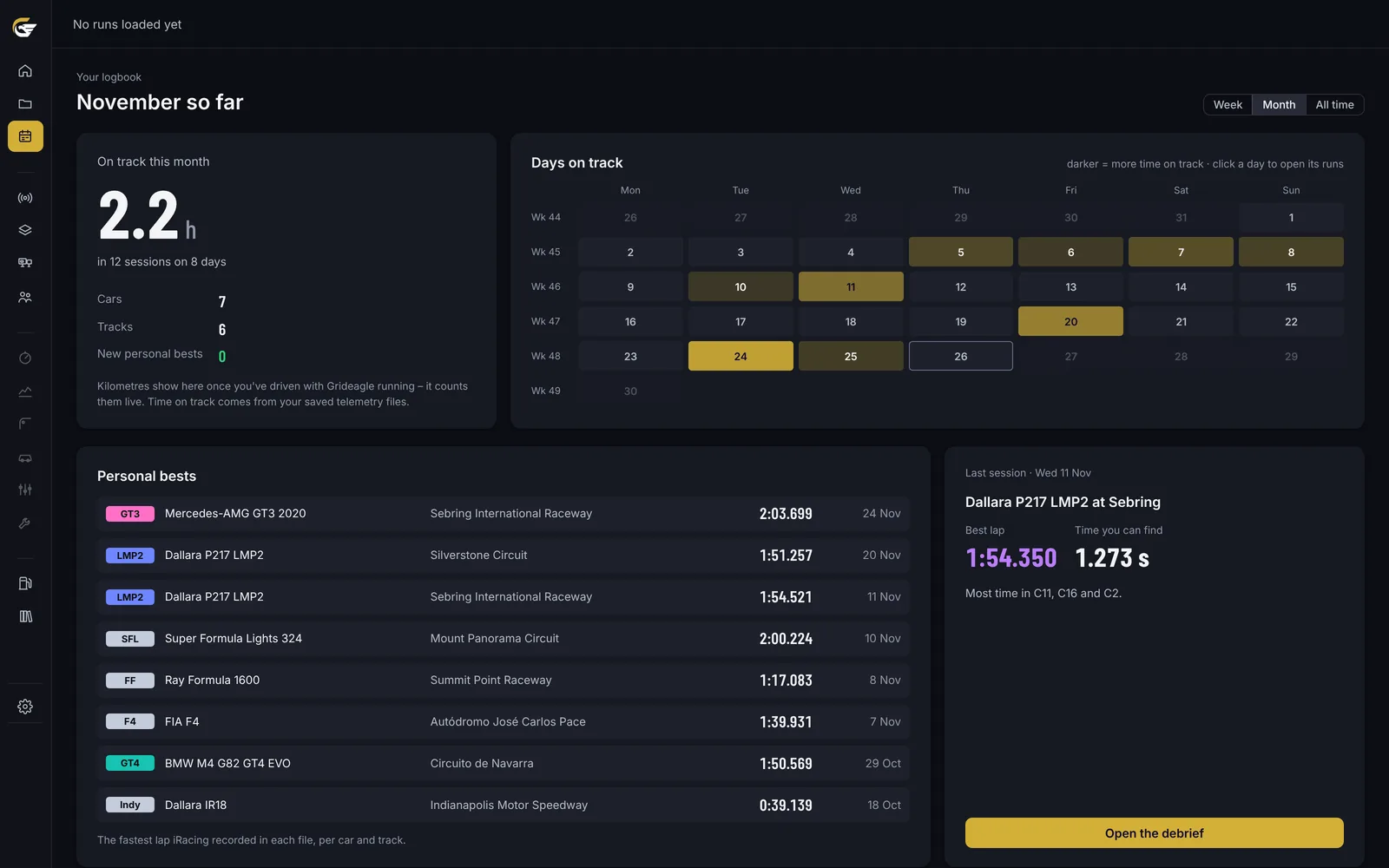
Your driving, at a glance.in testing
- Time on track by week, month or all time
- A calendar of the days you drove
- Personal bests per car and track, from your telemetry files
Lap compare
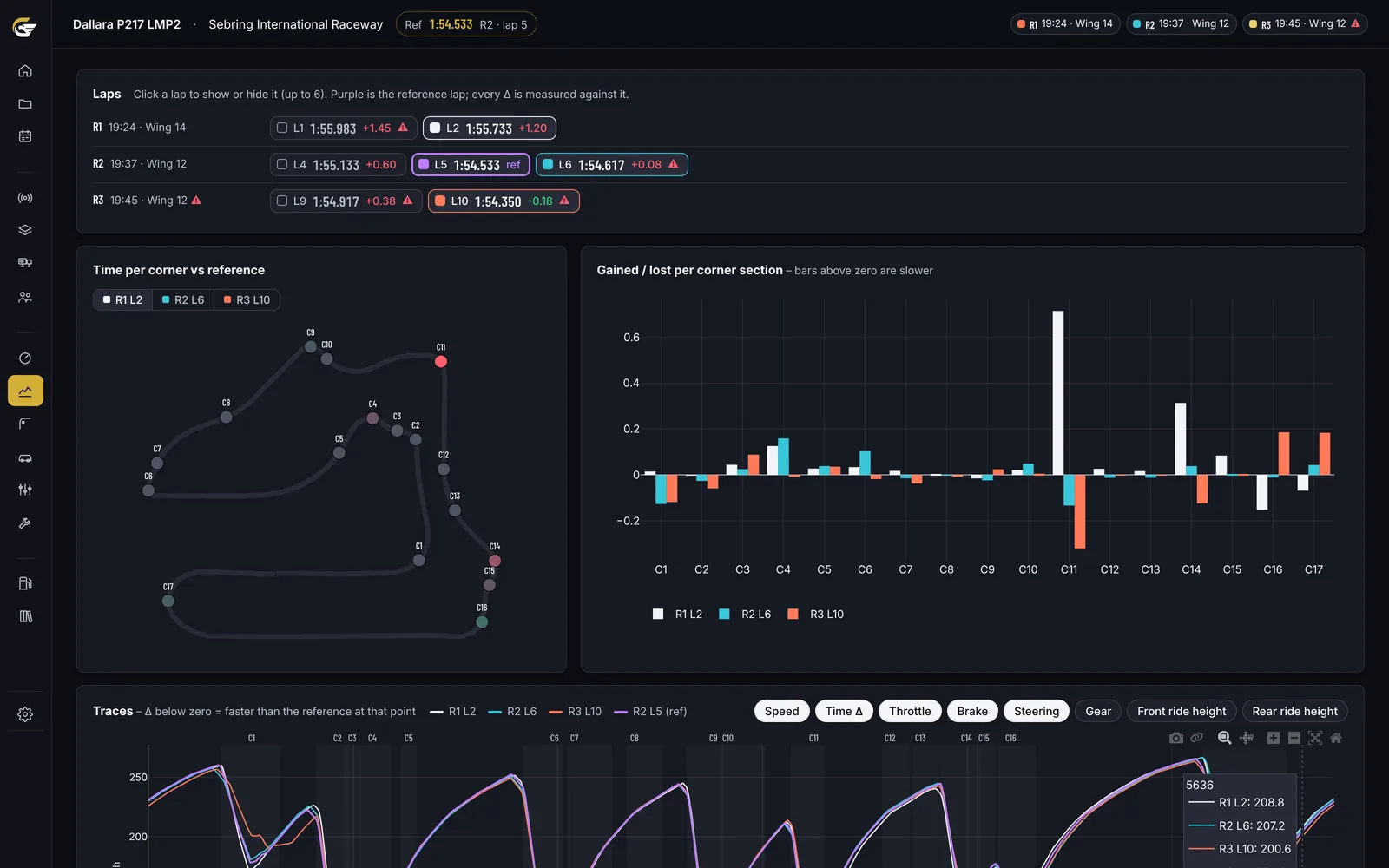
Every lap against the reference.
- Time per corner, coloured on the track map
- Gained and lost per corner section, for each lap
- Traces – speed, time delta, throttle, brake, steering, gear, ride heights
Corners
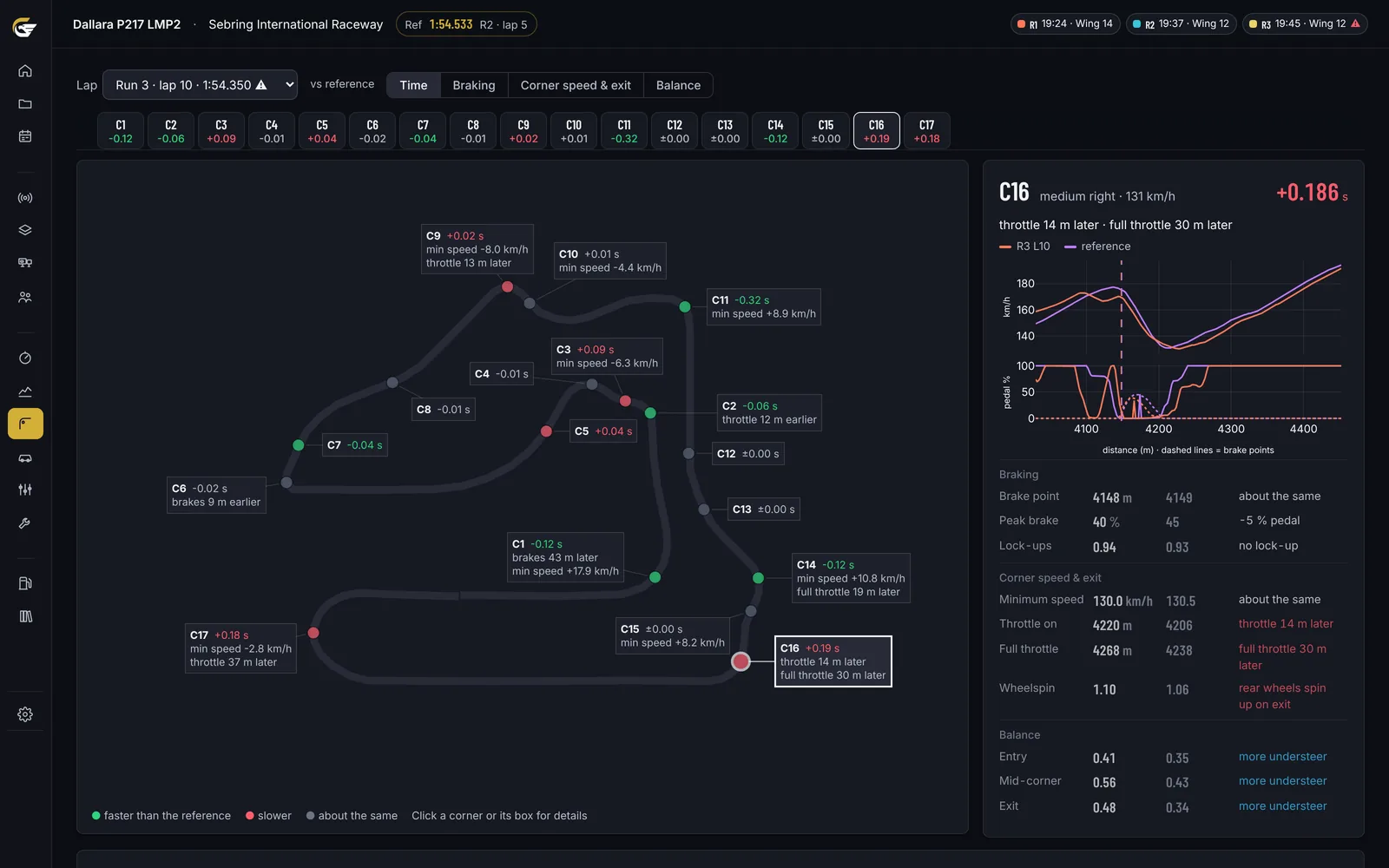
Every corner, measured.
- Brake point and peak brake pressure
- Minimum speed, throttle and full throttle
- Lock-ups and wheelspin
- Balance on entry, mid-corner and exit
Car
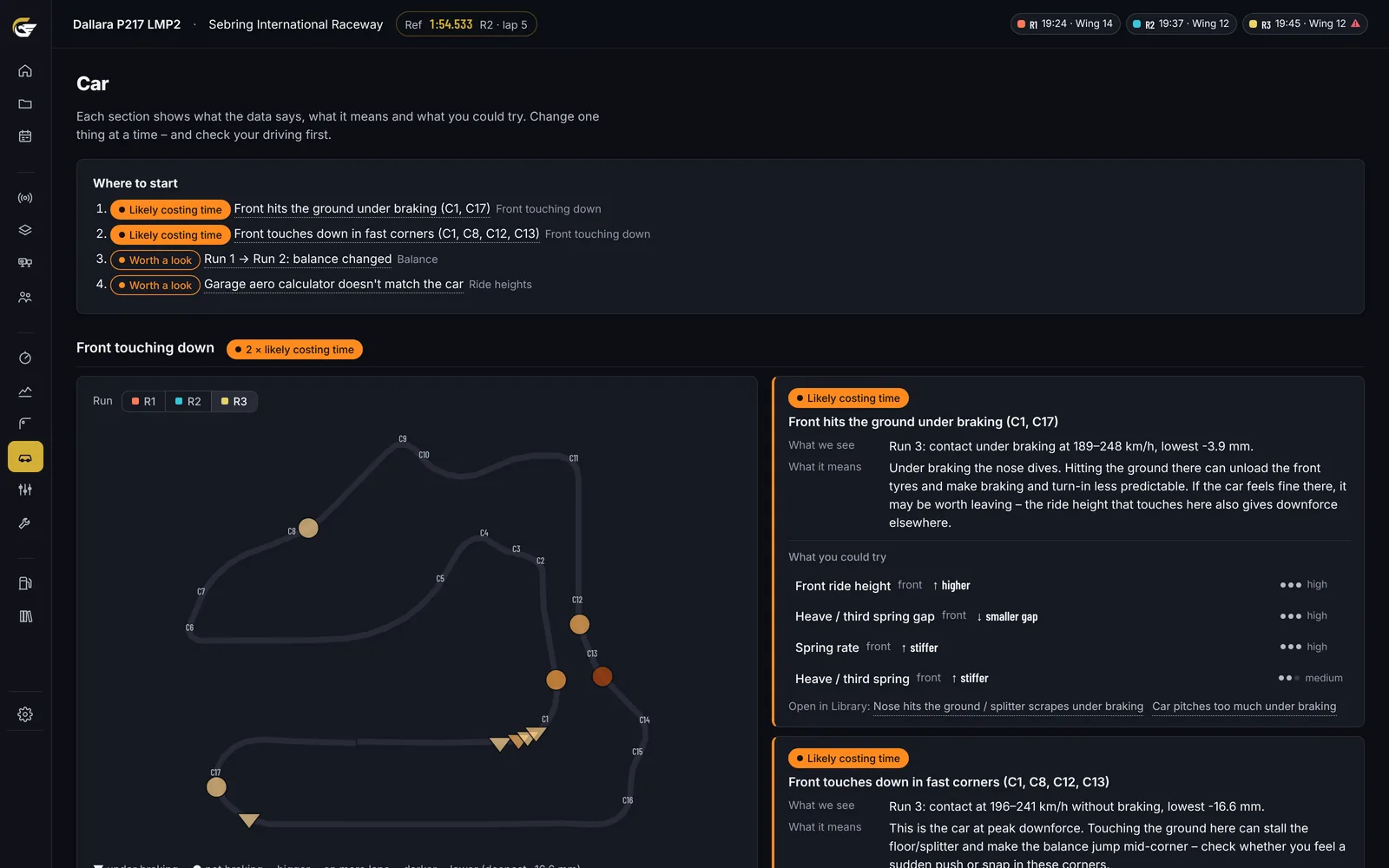
See what the car does – not only what it feels like.
- What the data says, what it means and what you could try
- Where the car touches the ground, on the map
- Each finding marked "likely costing time" or "worth a look"
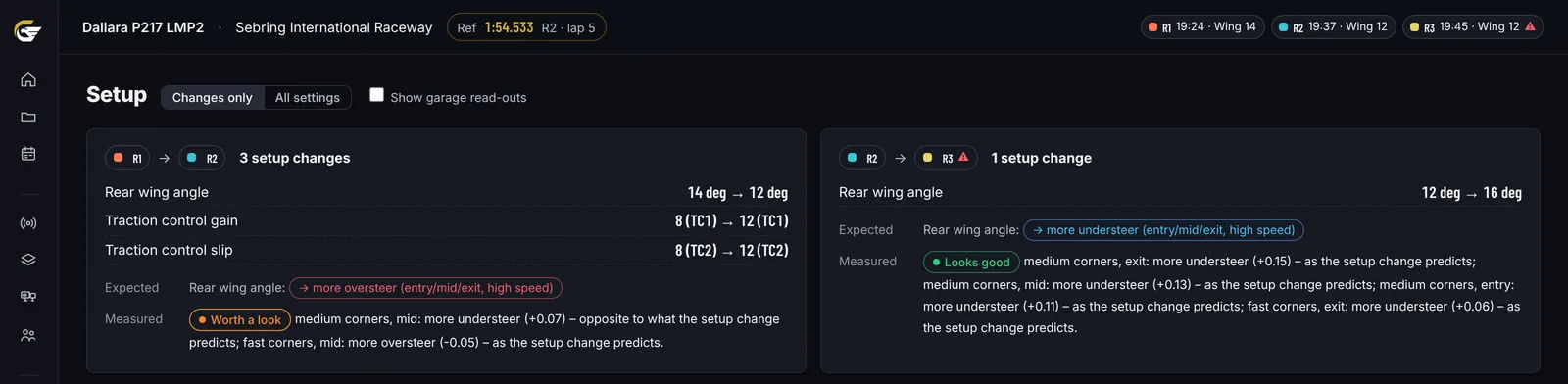
Setup
Runs side by side, change by change.in testing
- Changed values highlighted between runs
- The expected effect of each change
- What the telemetry measured, next to what was expected
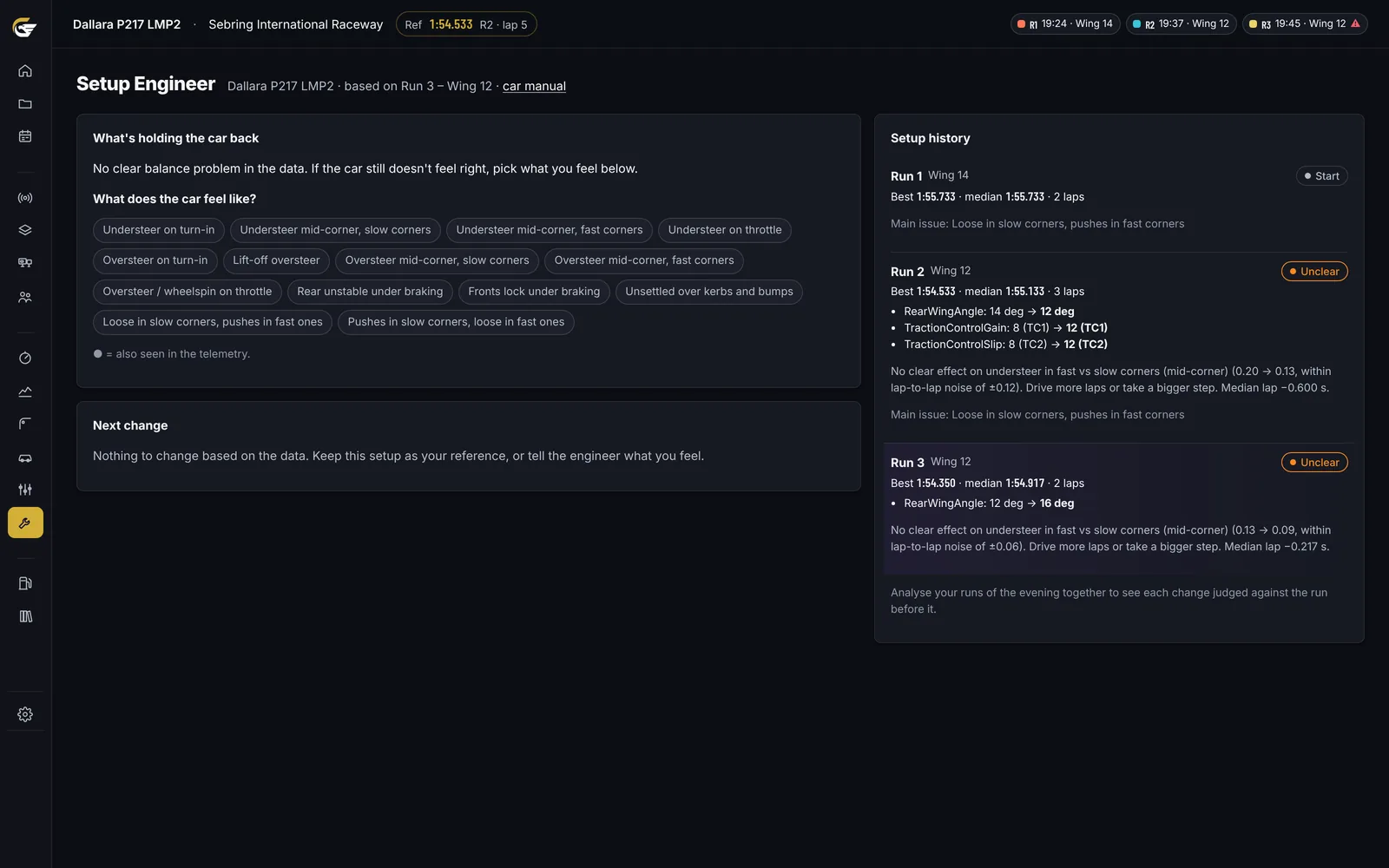
Engineer
What to try next.
- Tell it what the car feels like – it checks the telemetry too
- Setup history of the evening, run by run
- The next change to try – or a clear "keep this setup"
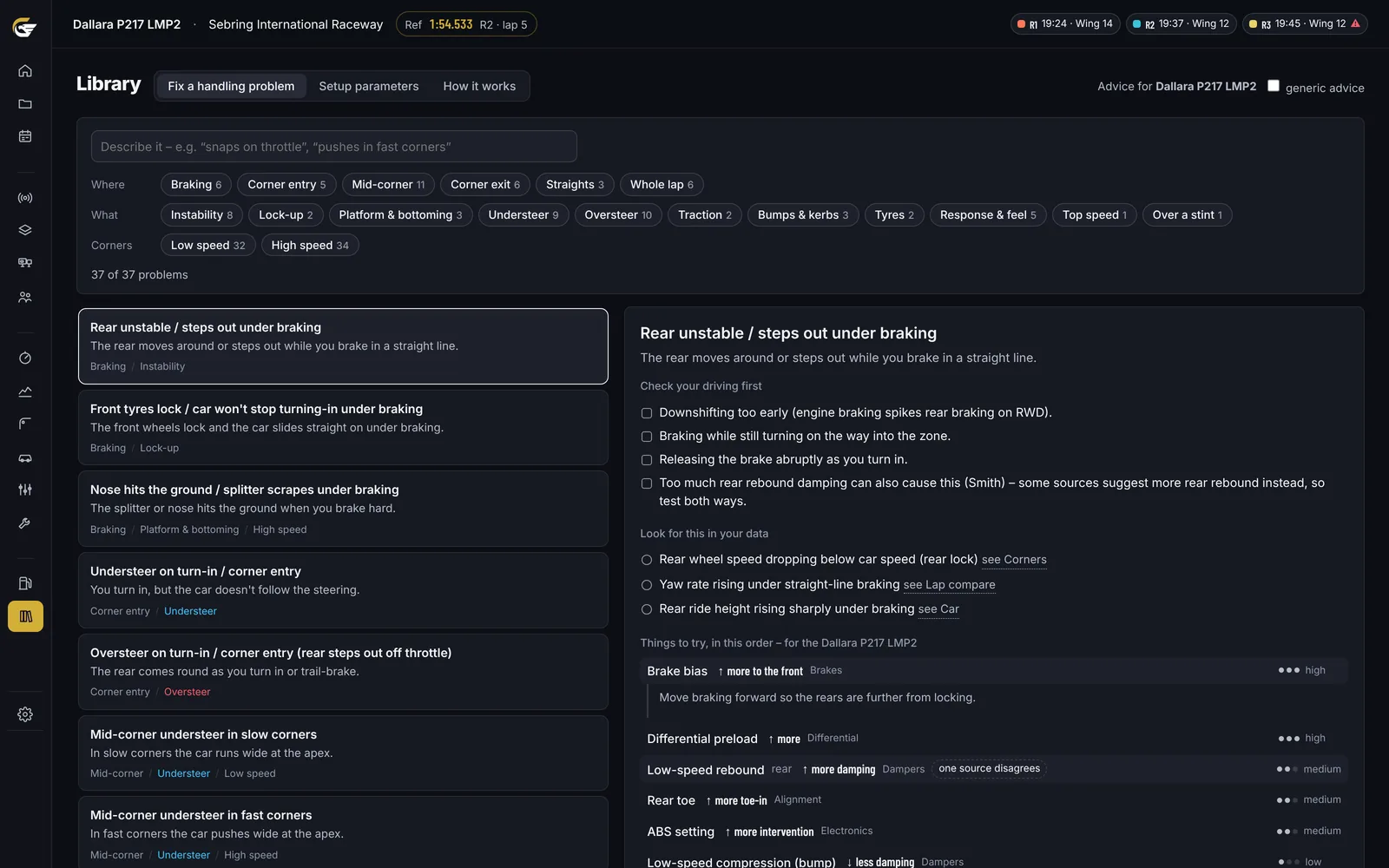
Library
A setup library that answers questions.
- Filter by where it happens – braking, entry, mid-corner, exit – and by what you feel
- What to check in your driving first
- Setup changes to try, in order, for your car
Track data
Its own track data. Growing with every session.
Track maps, corners and sectors are learned from your own sessions – not taken from third-party datasets. Corners are found from the shape of the track, sectors come from iRacing's own session data.
in testing Pit-lane learning: pit entry and exit measured from every car's pit-road state.
The Hub · 16 pages
- Home
- Sessions
- Logbook
- Live
- Overlays
- Overlay layouts
- Team
- Summary
- Lap compare
- Corners
- Car
- Setup
- Engineer
- Fuel
- Library
- Settings

Help shape the analysis.
Tell us what you look for in telemetry – on Discord or by e-mail.